Cooling & Fan Control
Manage cooling profiles and fan settings for optimal performance and noise levels.
Overview
Your EDC includes an active cooling system with intelligent fan control to keep components running at optimal temperatures:
Cooling System:
- High-performance cooling fans located at the back of the compute drawer
- Fans exhaust hot air directly out the rear panel
- Intake from interior airflow through perforated materials
- Temperature-based automatic speed control
- Three user-selectable cooling profiles
Location: Fans are mounted at the back of the larger drawer shelf, facing the rear panel
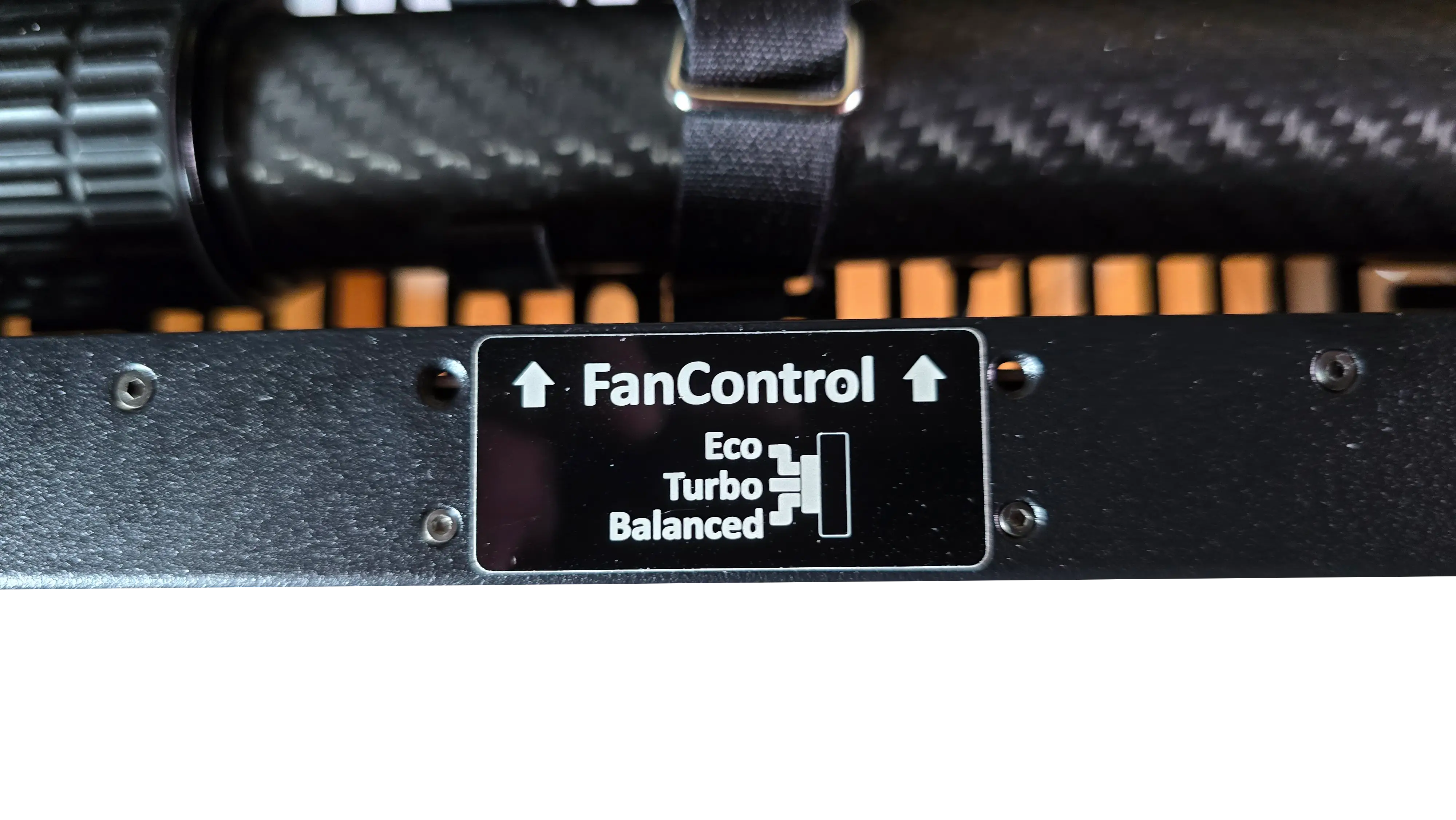
Control: Manual profile selection via button on the fans in the top drawer
For Most Users: Leave on Balanced
The EDC comes pre-configured with the "Balanced" cooling profile, which works well for most deployments.
Quick Check (30 seconds):
-
Listen to the Fan Noise:
- Should be a steady, low hum during normal operation
- Fans will speed up under heavy load
- Should not be excessively loud or completely silent
-
Feel the Exhaust Air:
- Place hand near rear panel exhaust vents
- Should feel warm air flowing out
- Not hot enough to be uncomfortable
✅ Fans running normally? You're done!
👉 Continue to Storage Drawers
Understanding Cooling Profiles
The EDC offers three cooling profiles with different fan speed curves:
🌿 Eco Profile (Quietest)
Best For:
- Office environments where noise matters
- Light workloads (basic VMs, low CPU usage)
- Cooler ambient temperatures (< 20°C / 68°F)
Fan Behavior:
- Starting speed: 2800 RPM at 25°C (77°F)
- Maximum speed: 4000 RPM at 45°C (113°F)
- Noise level: Very quiet, gentle hum
- Cooling capacity: Adequate for light loads
When NOT to Use Eco:
- High ambient temperatures (> 25°C / 77°F)
- Heavy sustained workloads
- All nodes running at high CPU utilization
- Dense VM deployments
⚖️ Balanced Profile (Recommended)
Best For:
- Most deployments and use cases
- Mixed workloads (some VMs, normal usage)
- Normal ambient temperatures (15-25°C / 59-77°F)
- Good balance of cooling and noise
Fan Behavior:
- Starting speed: 3200 RPM at 25°C (77°F)
- Maximum speed: 4600 RPM at 45°C (113°F)
- Noise level: Moderate, noticeable but not loud
- Cooling capacity: Good for typical edge workloads
This is the default profile - works well in most situations.
⚡ Turbo Profile (Maximum Cooling)
Best For:
- Hot environments (> 25°C / 77°F ambient)
- Maximum compute workloads
- High-density VM deployments
- When you need maximum cooling capacity
- Shorter deployments where noise isn't a concern
Fan Behavior:
- Starting speed: 3600 RPM at 25°C (77°F)
- Maximum speed: Maximum RPM at 40°C (104°F)
- Noise level: Loud, datacenter-level noise
- Cooling capacity: Maximum available
Trade-Off: Significantly louder but provides best thermal performance.
How to Change Cooling Profile
Locate the Fan Control Button:
-
Unlock and Open the Top Storage Drawer
- This is the larger, full-depth drawer
-
Look at the Rear of Fans of the Drawer
- Fan controls are visible from inside the shelf
- Control switch is located on or near the fans
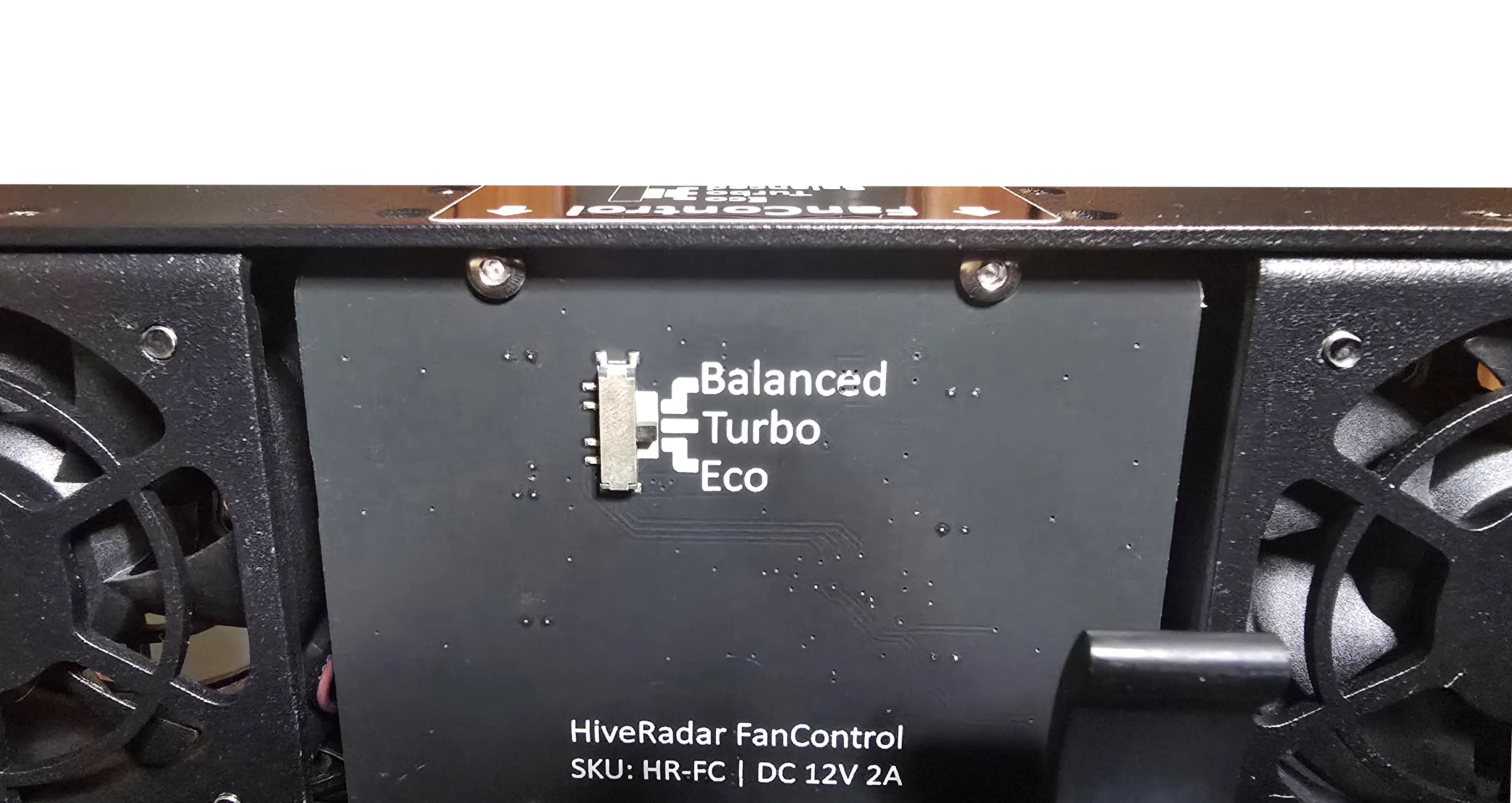
Change the Profile:
-
Move the switch toggle up or down to cycle through profiles.
-
Close the drawer when done
Note: The selected profile is retained even after power cycling the EDC.
Airflow and Ventilation
Keep Vents Clear
Rear Panel Exhaust:
- Keep at least 6 inches (15cm) clearance behind the EDC
- Don't block exhaust vents with equipment or walls
- Exhaust area should have open air circulation
Front Panel Intake:
- Perforated materials allow air intake from front
- Don't cover the front panel completely during operation
- Optional mesh filter cloth may be available (check your edition)
Side Ventilation:
- EDC case has ventilation holes and perforations
- Don't stack items on top of closed EDC
- Maintain clearance on sides if possible
[IMAGE: Diagram showing airflow path - intake from front/interior, exhaust from rear]
Cooling Performance by Edition
📦 NUC Edition
Thermal Characteristics:
- Lowest heat generation (3× NUC nodes)
- Typical power: 250-400W
- Cooling requirement: Low to moderate
Profile Recommendations:
- Eco: Good for most deployments
- Balanced: Use if ambient > 20°C (68°F)
- Turbo: Rarely needed unless very hot environment
🔶 HR-01-2 Edition
Thermal Characteristics:
- Moderate heat generation (2× HR-01 nodes)
- Typical power: 350-550W
- Cooling requirement: Moderate
Profile Recommendations:
- Eco: Light workloads, cool environments
- Balanced: Most deployments (default)
- Turbo: Hot environments or sustained heavy load
🔷 HR-01-4 Edition
Thermal Characteristics:
- Highest heat generation (4× HR-01 nodes)
- Typical power: 600-900W
- Cooling requirement: High
Profile Recommendations:
- Eco: Not recommended for most deployments
- Balanced: Moderate workloads, controlled environment
- Turbo: Recommended for most production deployments
Environmental Considerations
🌡️ Operating Temperature Guidelines
Recommended Ambient Temperature Range:
- Ideal: 15-25°C (59-77°F)
- Acceptable: 10-30°C (50-86°F)
- Not recommended: Below 5°C or above 45°C
Note: The EDC is designed for deployment in controlled environments, not exposed to extreme temperatures.
If Deploying in Hot Environments:
- Use Turbo cooling profile
- Ensure excellent ventilation
- Consider reducing workload during peak heat
- Monitor temperatures closely
- Provide shade or climate control if possible
If Deploying in Cold Environments:
- Allow EDC to warm up before heavy workloads
- Condensation may occur when bringing cold EDC into warm environment
- Let system acclimate for 30 minutes before powering on
🏜️ Dusty Environments
Current Configuration:
- No user-serviceable air filters at this time
- Airflow design uses perforated materials
- Not recommended for extremely dusty environments
If Deploying in Dusty Conditions:
- Use Balanced or Turbo profile (higher airflow helps prevent dust buildup)
- Position EDC to minimize dust intake
- Some editions may include optional mesh filter cloth for front intake
- Monitor for dust accumulation over time
- Contact your reseller/partner about filter options
Dust-Sensitive Deployments:
- Construction sites: Use with caution, provide dust barriers
- Desert/sandy areas: Minimize exposure, use enclosure if possible
- Industrial environments: Assess dust levels before deployment
Troubleshooting
🔧 Fans running very loud constantly
Problem: Fans at maximum speed all the time, very noisy
Possible Causes:
-
Turbo Profile is Active
- Check fan control button, switch to Balanced or Eco
- May have been changed accidentally
-
High Ambient Temperature
- Check room/environment temperature
- Is EDC in direct sunlight or hot area?
- Provide better ventilation or cooler location
-
Heavy Workload
- Check what VMs/applications are running
- High CPU usage will increase temperature
- This is normal behavior - fans doing their job
-
Blocked Airflow
- Check rear panel exhaust - is it blocked?
- Is EDC against a wall or in tight space?
- Ensure 6+ inches clearance at rear
-
Temperature Sensor Issue
- If fans run at max speed even when system is cool
- May indicate sensor problem
- Contact your reseller/partner for support
🔧 Fans not running or very slow
Problem: Can't hear fans running, no air from exhaust
Solutions:
-
Check Cooling Profile
- May be on Eco with low system load
- This is normal - fans run slower when cool
- Try Balanced profile to hear fans clearly
-
System is Very Cool
- If ambient temperature is low and workload is light
- Fans may run at minimum speed
- This is normal and efficient
-
Fan Failure
- If no air at all from exhaust even under load
- Temperature warnings in HCI platform
- Power down system immediately
- Contact your reseller/partner for service
-
Fan Control Issue
- Try cycling through profiles
🔧 Temperature warnings or thermal throttling
Problem: HCI platform showing high temperature warnings, performance degraded
Immediate Actions:
-
Switch to Turbo Cooling Profile
- Provides maximum cooling immediately
- Should reduce temperatures within minutes
-
Check Airflow Obstructions
- Verify rear exhaust is completely clear
- Remove any objects blocking vents
- Ensure EDC has proper clearance
-
Reduce Workload Temporarily
- Shut down non-essential VMs
- Reduce CPU-intensive processes
- Let system cool down
-
Improve Environment
- Move EDC to cooler location if possible
- Add external fan or air circulation
- Reduce ambient temperature
Long-Term Solutions:
-
Reassess Deployment Environment
- May be too hot for sustained operation
- Consider climate control
- Evaluate workload distribution
-
Check for Hardware Issues
- Failed fan or sensor
- Dust accumulation
- Contact support if thermal issues persist
Best Practices
For Quiet Operation:
- Use Eco profile in office/quiet environments
- Keep workloads moderate
- Deploy in climate-controlled space
- Maintain good ventilation
For Maximum Performance:
- Use Balanced or Turbo profile
- Ensure excellent ventilation
- Monitor temperatures under load
- Don't restrict airflow
For Long Equipment Life:
- Avoid sustained operation at high temperatures (> 65°C)
- Use appropriate cooling profile for your environment
- Keep exhaust clear at all times
- Respond to temperature warnings promptly
What's Next?
After understanding cooling management:
👉 LED Control - Control interior and exterior lighting
👉 Storage Drawers - Organize and access storage drawers