HiveSight Setup
HiveSight is HiveRadar's monitoring dashboard. It runs on the HiveSight SBC inside the P-EDC, powered by PoE from the switch, and works on the local network without internet. This page covers first login and setup; the dashboard itself is described in HiveSight Dashboard.
1. Open HiveSight
Use any of these from a laptop on the P-EDC network:
https://hiveradar-edc-<serial6>.local, where<serial6>is the last six characters of the serial. The full name is on your Access & Configuration Sheet, the unit label and in HiveSight Settings- The address from your gateway's DHCP lease list
- Its own 169.254.x.x address from your Access & Configuration Sheet, when there is no DHCP. HiveSight keeps checking for DHCP and switches to a lease when one appears
Your browser warns about a self-signed certificate on the first visit. That's expected; continue to the page.
If .local names don't resolve on your network (some block mDNS), use the IP address instead.
2. Log in and change the password
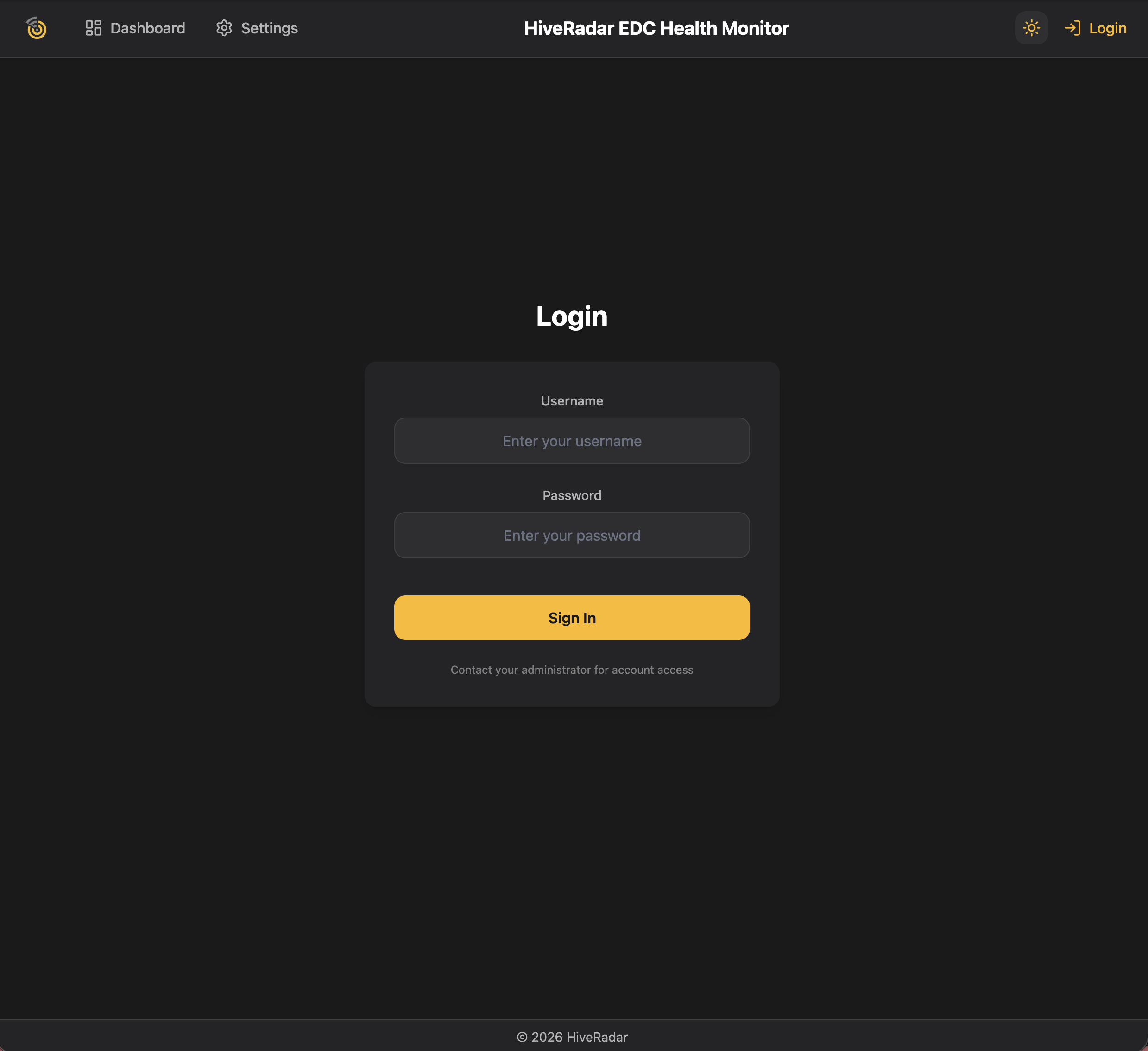
- Log in with the HiveSight login from your Access & Configuration Sheet. The factory default is admin / admin.
- You're asked to set a new password straight away. Follow the rules shown on the screen.
3. Run the setup wizard
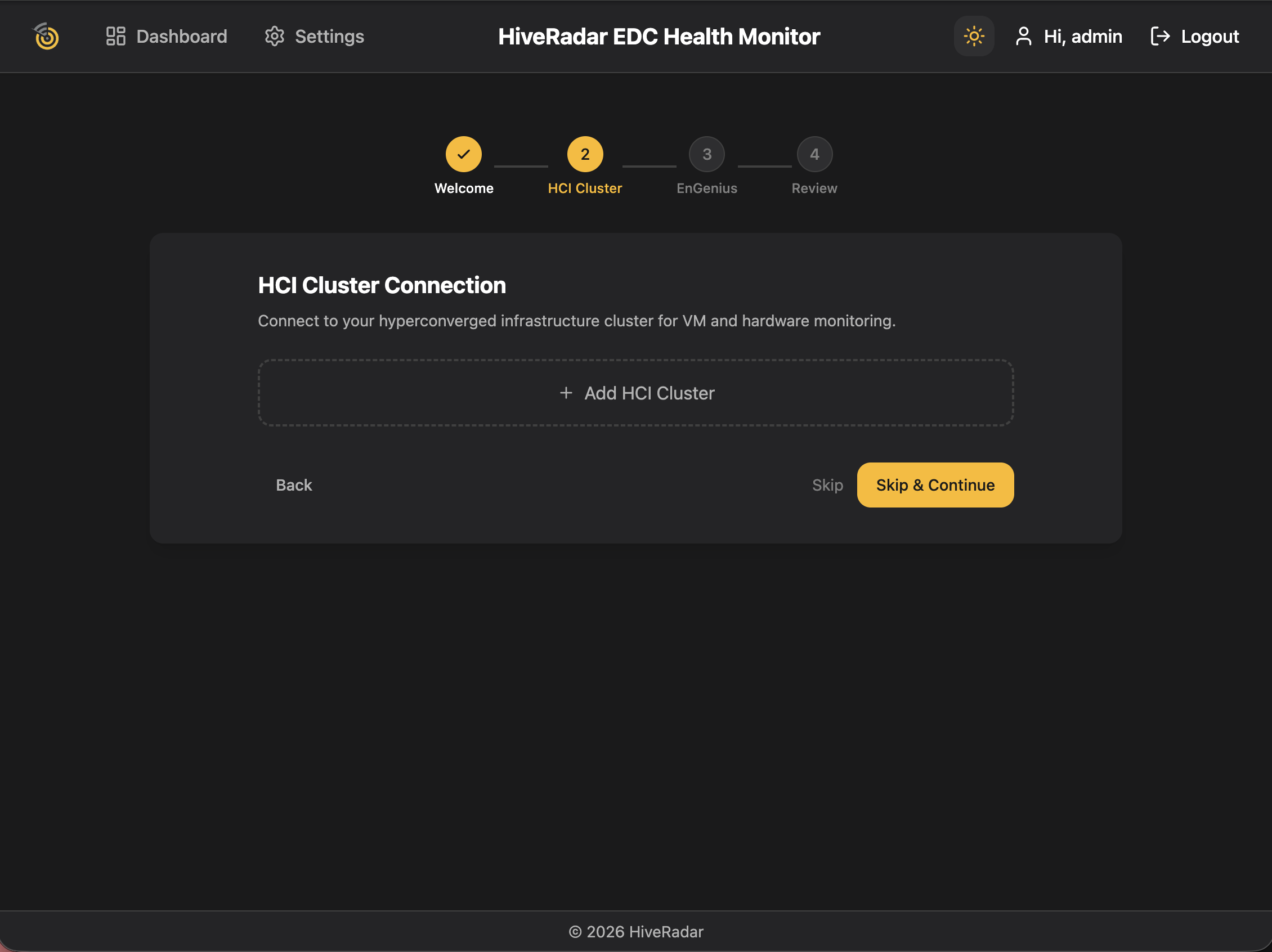
The wizard opens on first login. You can re-run it any time from Settings (wand icon).
| Step | What you do |
|---|---|
| License | Read and accept the end user licence. HiveSight won't continue until you do |
| Welcome | Start the wizard, or skip and set things up later in Settings |
| HCI Cluster | Connect your cluster (below) |
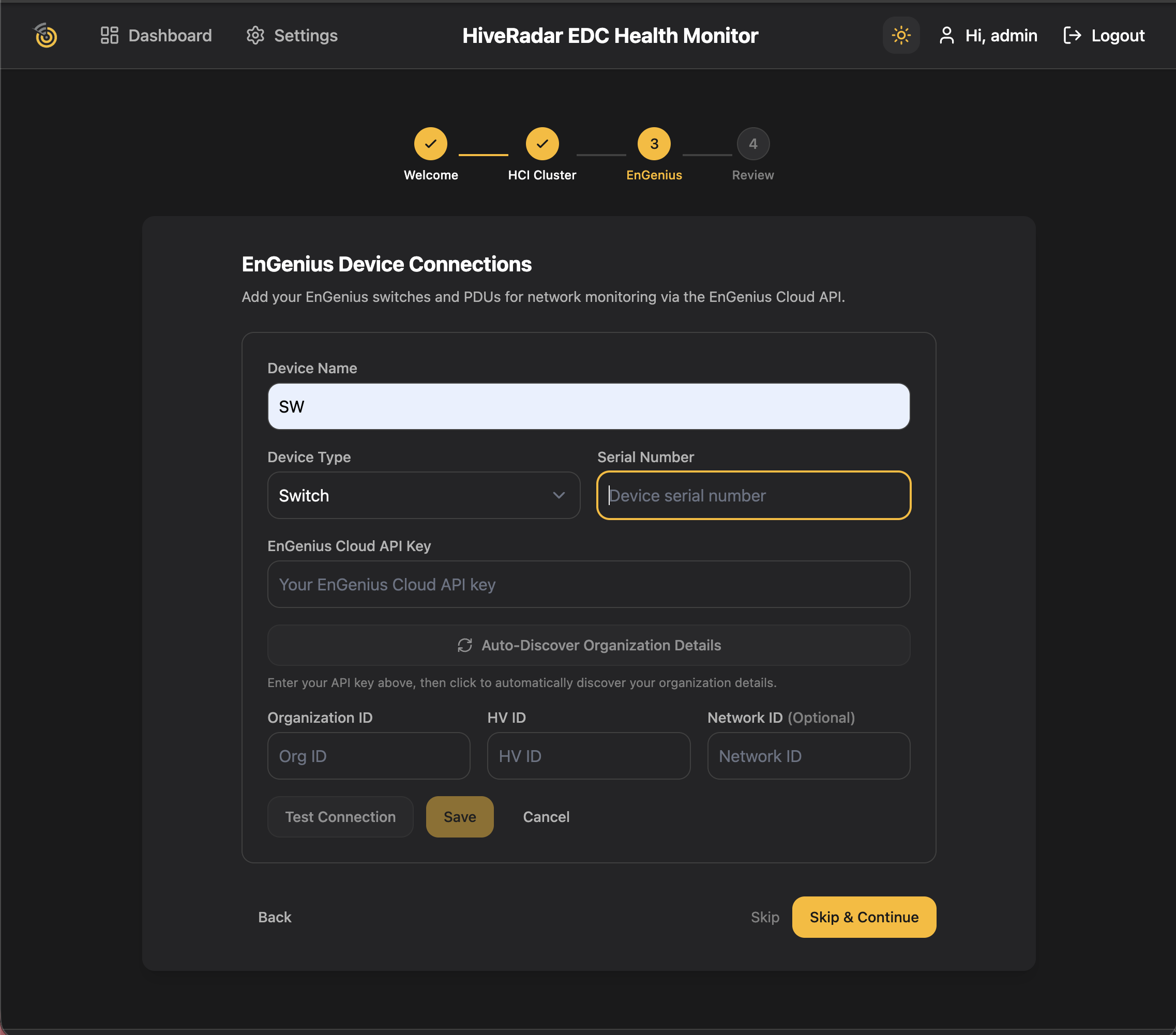
| EnGenius | Connect the switch and PDU (below). Optional |
| Review | Check the summary and go to the dashboard |
Connect the HCI cluster
- Enter a connection name, choose the vendor, and enter the cluster address. The port fills in for each vendor.
- Enter the username and password (or token for Proxmox).
- Untick Verify SSL if the cluster uses a self-signed certificate (most do).
- Click Test Connection, then Save Connection.
HCI monitoring is not automatic. After saving, check the HCI Cluster card on the dashboard shows Connected.
| Vendor | Address and port | Credentials | One connection covers |
|---|---|---|---|
| StorMagic SvHCI | Each node's IP, comma-separated; HTTPS 443 | A StorMagic login, usually admin. There's no read-only role | Each node reports itself, so list all nodes |
| NodeWeaver | The cluster leader; 2633, or 443 through the portal | NodeWeaver username and password; the built-in API user works | The whole cluster |
| Scale Computing HC3 | https://<host>, 443 | Any read-only user | The whole cluster |
| Proxmox VE | Port 8006 | An API token (preferred) or user and password, with read-only audit rights (Sys.Audit, VM.Audit, Datastore.Audit) | The whole cluster |
Connect the switch and PDU
Switch and PDU status in HiveSight currently needs the devices to be cloud managed in EnGenius Cloud, with internet access. Local monitoring for standalone devices is in development. Skip this step if yours are standalone.
- Enter a device name, type (Switch or PDU), serial number and your EnGenius Cloud API key.
- Click Auto-Discover Organization Details to fill the organization and HV IDs.
- Click Test Connection, then Save Connection. Repeat for the other device.
4. StorMagic witness
StorMagic clusters need a witness as a tie-breaker. It runs on the HiveSight SBC.
- HiveRadar pre-installed StorMagic: the witness is already on.
- Otherwise: turn it on in Settings > Add-ons > StorMagic Witness.
Keep the SBC powered and connected while the cluster runs (switch port 7 on the NUC PRO, port 3 on the HR-01-2). The nodes must reach it on TCP 4174. On a different subnet from the nodes, set the witness address manually in StorMagic. You can use your own witness instead; that setup is up to you.
5. Connect a battery (optional)
HiveRadar Off-Grid units (Delta 3 Pro and Delta 3 Plus) can report to HiveSight. Connect the battery's USB-C to the USB-C port on the P-EDC keystone panel, which leads to the HiveSight SBC. The Battery card appears on the dashboard once it is detected.
6. Set the time
In Settings, set your timezone. With internet, turn on NTP sync so logs and charts show the right time.
Good to know
- Internet: needed for updates, the speed test, the latency monitor, NTP and EnGenius Cloud status. Everything else works offline.
- Factory reset or settings backup: not available at this time. Contact your partner if HiveSight needs recovery.
- Ports HiveSight listens on: see Ports and Addresses.
Done. Your P-EDC is deployed. For daily use, see Operate.